Login Configuration
The login page's background image, header text, and description text can be customized for both Orion Admin and Orion Workspaces, letting you brand the sign-in experience for your organization.
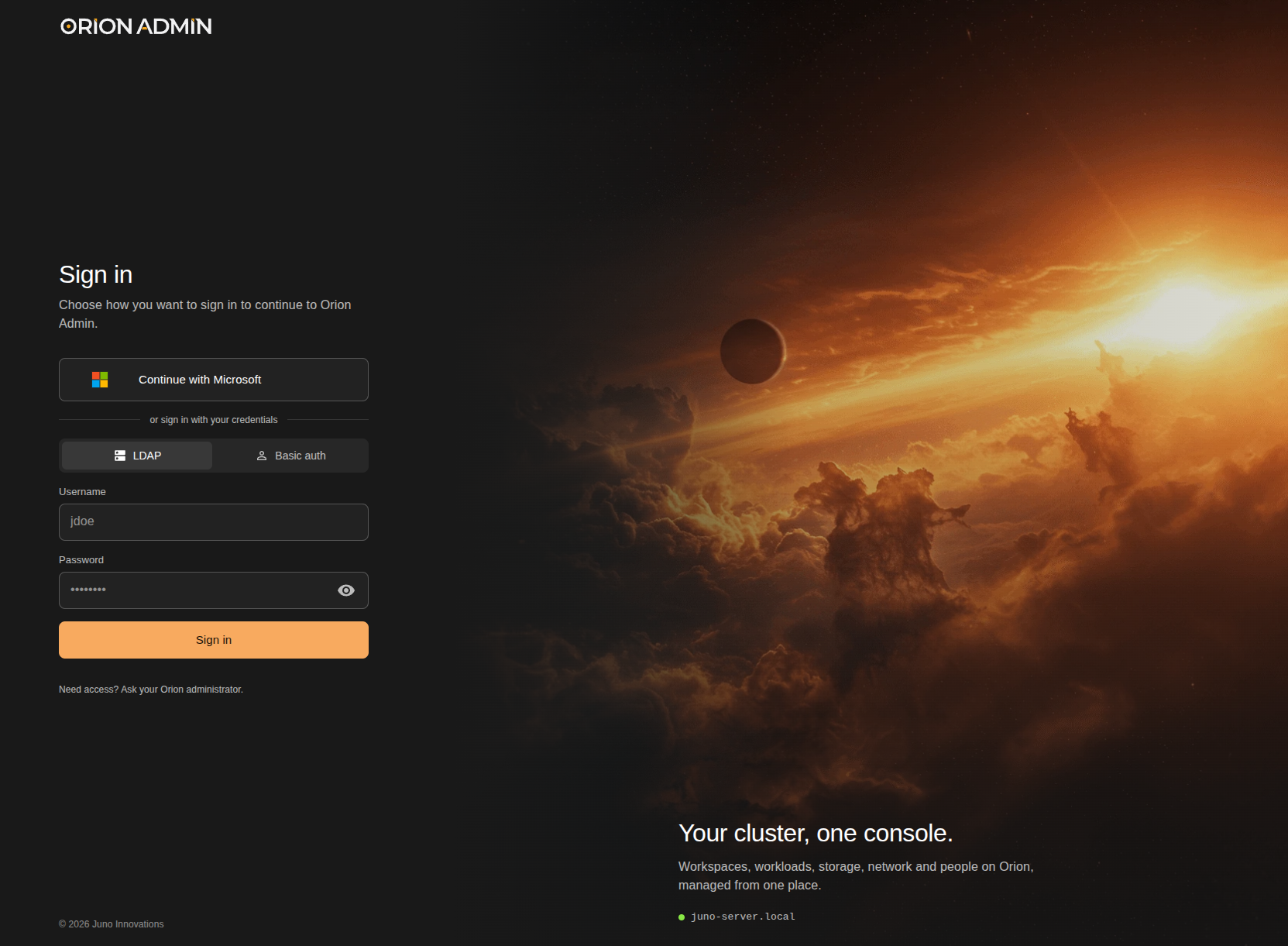
The background image fills the right-hand panel, and the header and description text sit in its bottom left corner. In the default login page above, these are "Your cluster, one console." and the line beneath it.
Login Page Branding
All three settings are optional, and are set with environment variables:
- Orion Admin: add them to the Genesis environment.
- Orion Workspaces: add them to the workspace's Hubble environment.
| Variable | Description |
|---|---|
LOGIN_BG_IMAGE |
The background image. Unset or default uses the bundled artwork, none shows a flat gray panel, and any other value is used as an image URL. |
LOGIN_HEADER |
Replaces the header text. |
LOGIN_DESCRIPTION |
Replaces the description text. |
env:
  LOGIN_BG_IMAGE: "https://assets.example.com/login-background.webp"
  LOGIN_HEADER: "Welcome to Example Studios"
  LOGIN_DESCRIPTION: "Sign in to access your workspaces."
Warning
The image URL must be reachable from the user's browser.
Background Image Guidance
- Use a landscape image, 1920x1080 or larger. The bundled artwork is 2096x1280.
- The image is scaled to cover the right-hand panel and center-cropped, so keep the subject near the middle and expect the edges to be trimmed on narrow screens.
- A dark gradient is overlaid on the bottom and left edges behind the text, so dark or low-contrast images work best.
- Use WebP or JPEG, ideally under 500 KB, so the login page loads quickly.