Upgrading and Rolling Back
This guide covers upgrading and rolling back your Orion deployment. Everything here is done from Orion Admin, with kubectl available as an alternative.
There are two things you can upgrade, each deployed from its own chart:
| Deployment | What it contains | Where you upgrade it |
|---|---|---|
| Orion Admin | Genesis, Terra, Titan, and the Metrics Gatherer | The Orion Admin settings page |
| Orion Workspaces | Hubble and Kuiper, per workspace | Each workspace's Manage page |
Before You Upgrade
Upgrade Orion Admin first, then your workspaces. Minor and patch upgrades of Orion Admin will not break existing workspaces, so you can keep Orion Admin up to date and upgrade each workspace when it suits your users. This avoids downtime for heavily used workspaces.
Review the changelogs. The technical changelog lists anything an operator must act on for each release, such as breaking changes, migration steps, and security fixes, along with the minimum supported Orion Admin version. If a release has nothing extra to consider, it says so explicitly. We recommend linking it in your internal documentation and reviewing it before every upgrade. The feature changelog covers what's new.
Air-gapped deployments need a proxied or forked copy of all OCI images and up-to-date deployment charts available before upgrading.
Upgrading Orion Admin
- Open the settings page from the user menu in the top right of Orion Admin.
- In the deployment settings, enter the new chart version in the
targetRevisionfield and submit. - Watch the upgrade progress in Argo CD.
Available versions are listed in the changelogs and as branches on the Genesis-Deployment repo.
Clear service version overrides first
Upgrading the chart brings each service up to the version pinned by that chart, unless you have overridden a service's version. Before upgrading, clear any overrides in Service Settings so every service moves to the new chart's versions.
Using kubectl instead
Upgrading a Workspace
- In Orion Admin, open Workspaces and click Manage on the workspace.
- Click Configure to open the workspace form.
- In the Configuration step, enter the new chart version in the Orion version field.
- Continue to Review, check the summary, and click UPDATE WORKSPACE.
- Watch the upgrade progress in Argo CD.
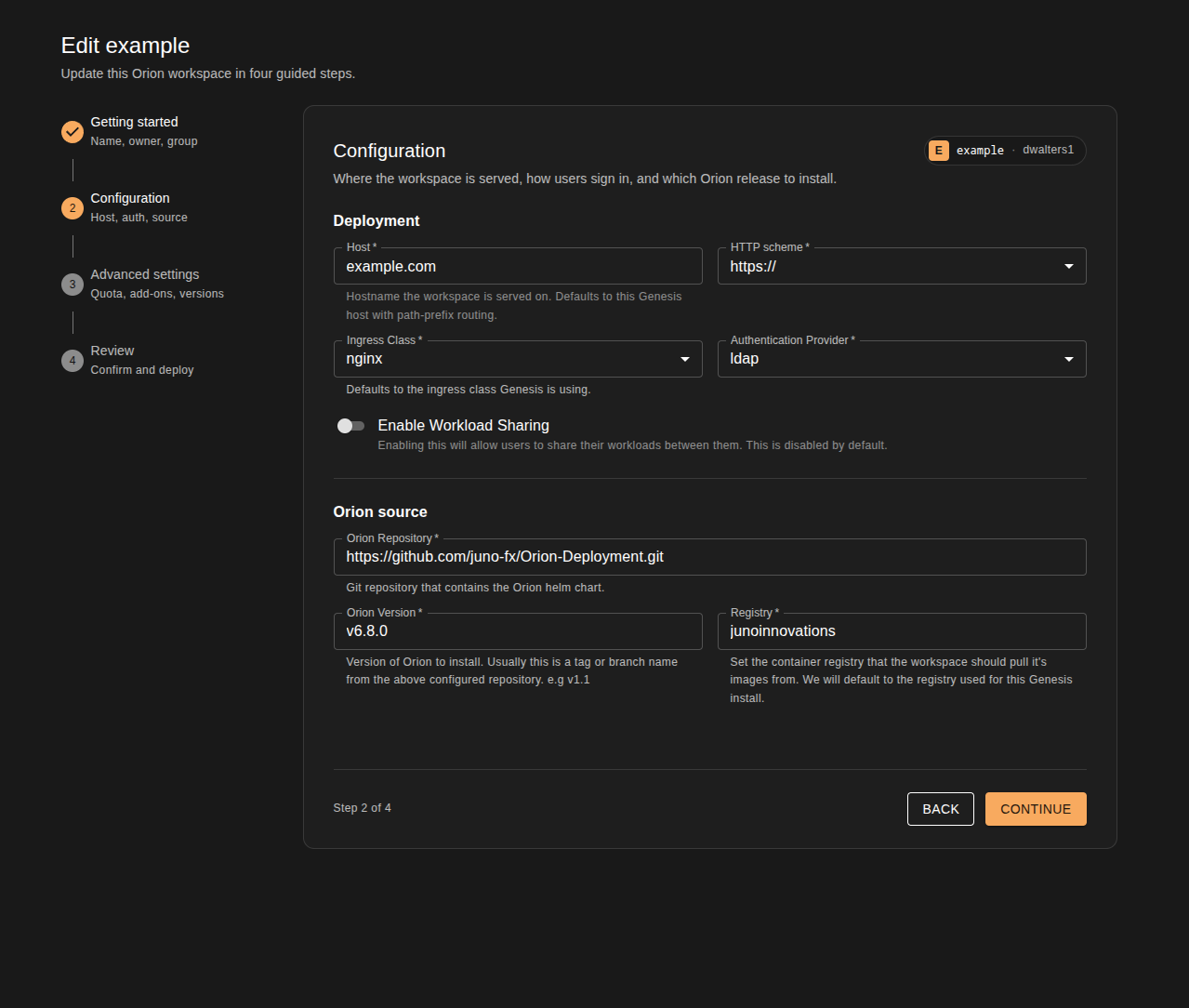
Available versions are listed in the changelogs and as branches on the Orion-Deployment repo.
Using kubectl instead
Overriding Individual Service Versions
Each chart pins its services to versions that are tested together, so in day-to-day operation you should not override them. Only override a service's version when debugging, trying an early access release, or when asked to by Juno support.
| Deployment | Services | Where to override |
|---|---|---|
| Orion Admin | Genesis, Terra, Titan, Metrics Gatherer | Service Settings on the settings page |
| Workspace | Hubble, Kuiper | The Advanced settings step of the workspace's Configure form |
To roll a service back to the chart default, clear its version override and submit. The service returns to the version pinned by the chart.
Using kubectl instead (Orion Admin)
Edit the Genesis application and set the image tags under its Helm parameters:
Rolling Back
To roll back a deployment, follow the same steps as an upgrade and enter the previous chart version instead. Check the technical changelog first, as a major release may include migration steps that cannot be reversed by changing the version alone.
Monitoring an Upgrade
Every Orion Admin and workspace deployment is an Argo CD application, so Argo CD shows the sync and health status of each upgrade. Open it from the Argo CD Dashboard plugin in Orion Admin, through your existing ingress, or by port-forwarding. A workspace's sync and health status is also shown on its Manage page. See our Argo CD overview for more.
If a service misbehaves after an upgrade, check its logs in the Orion Admin logs console.