Workspace Management
What is a workspace?
A workspace is an isolated environment for Hubble and Kuiper with its own network policies; connecting to a workspace lets you launch workloads. See the Orion Workspaces overview for what makes up a workspace and how users work in it.
Renamed from Projects
Workspaces were previously called Projects. The existing project API endpoints are still fully functional, but are now deprecated in favor of new equivalent workspace endpoints. New integrations should target the workspace endpoints going forward; the project endpoints will be removed in a future release. Titan group assignment also currently accepts both "Workspace" and "Project" as this group type, existing "Project" groups continue to work unchanged, and this will be consolidated to "Workspace" only in a future release.
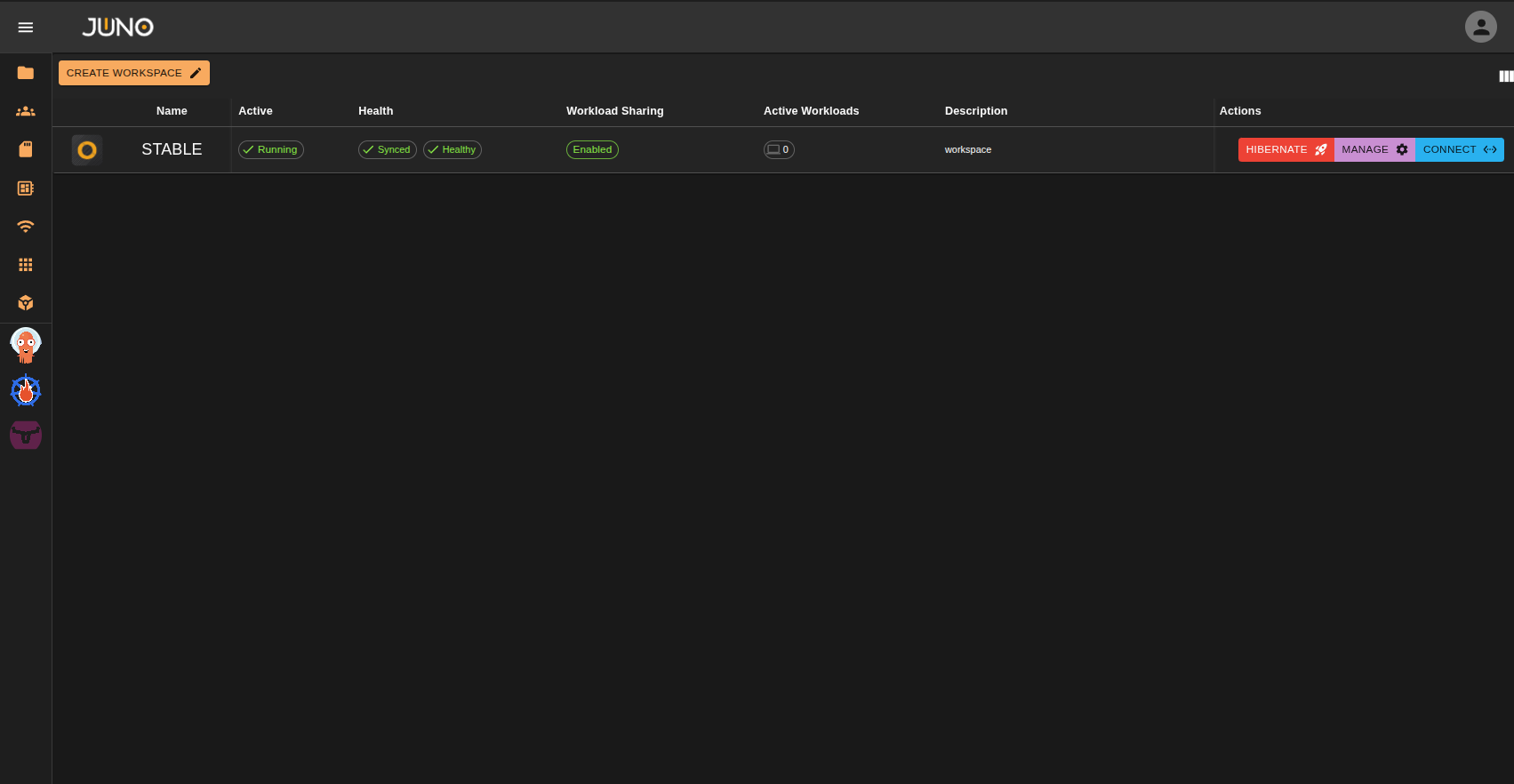
The workspace management page allows admins to create, configure, and activate workspaces. While also allowing users to connect to their assigned workspaces. See user group assignments on our User Management Page for more information. Users can also see which workspaces are active, the status of each workspace, which products are active on each workspace, the number of active workloads currently running on a workspace, and the description of the workspace.
Workspace Creation
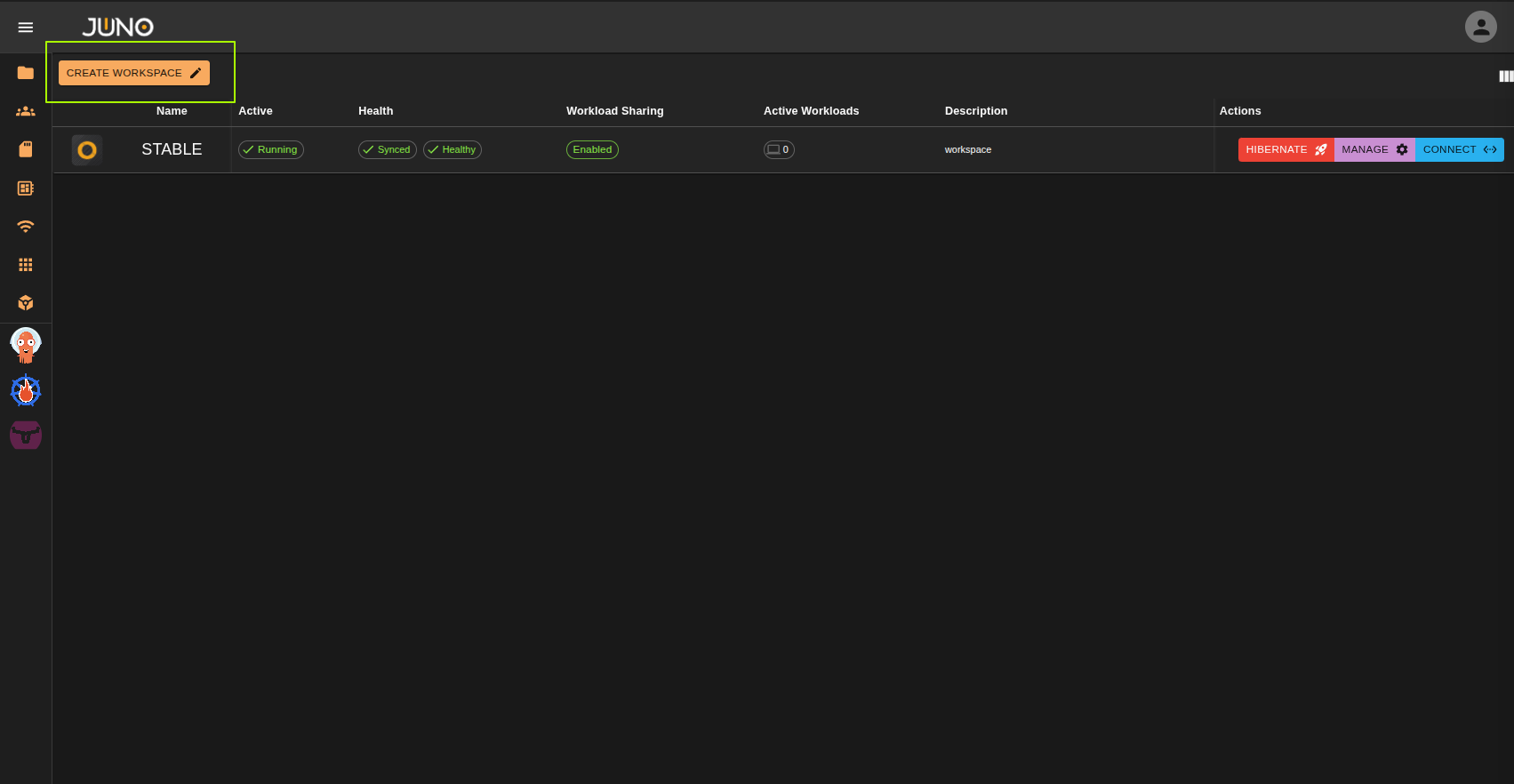
At the top left of the workspace table, there is a button labeled "CREATE WORKSPACE" clicking this button opens a workspace creation wizard.
Note
Admins are the only users that are able to create new workspaces. Learn more about user management here
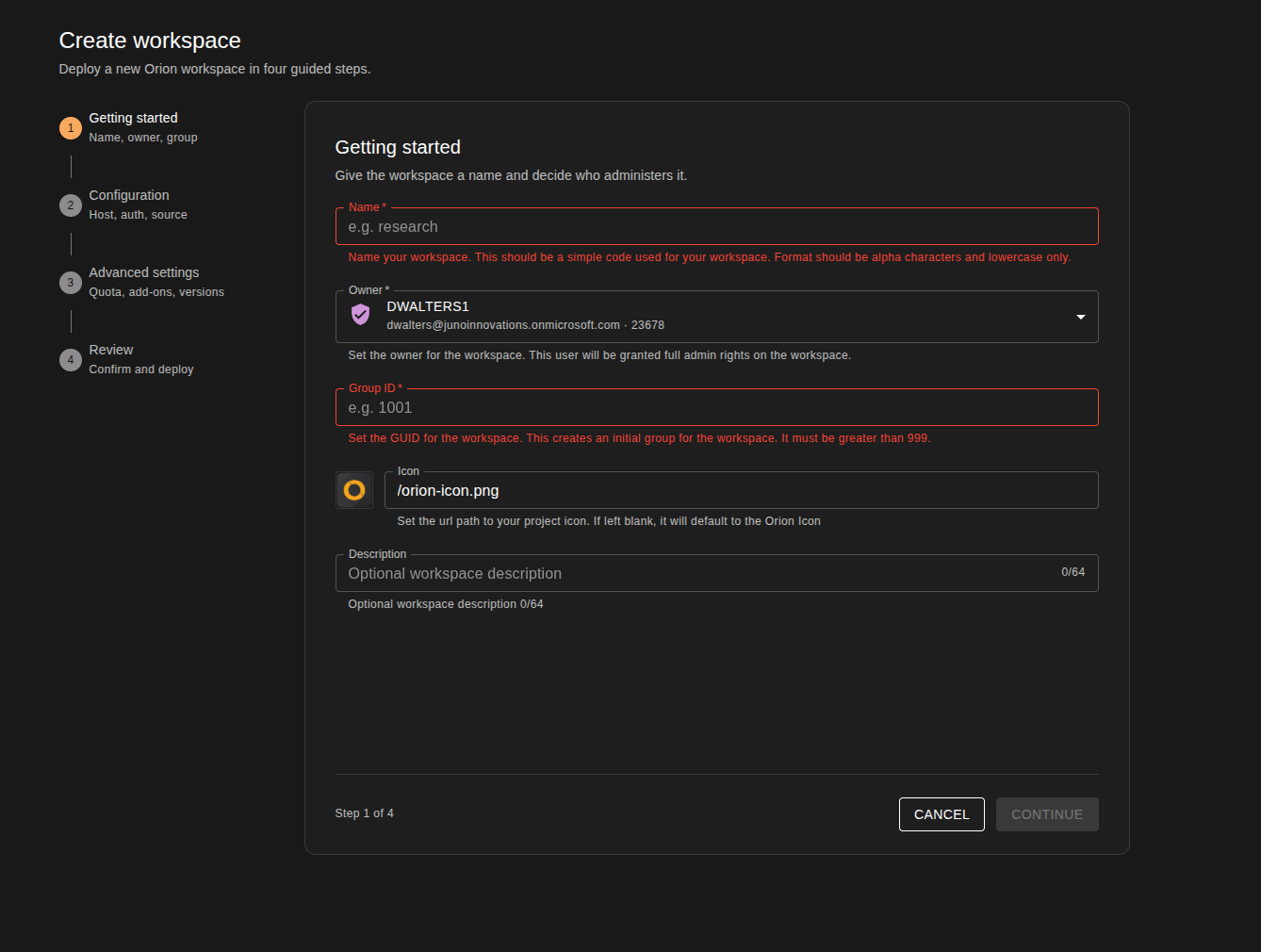
The wizard walks you through four steps: Getting started, Configuration, Advanced settings, and Review.
Getting started
Give the workspace a name and decide who administers it.
| Field | Required | Description |
|---|---|---|
| Name | Yes | A short code for the workspace, using lowercase letters only. For example, research. |
| Owner | Yes | The admin user who owns the workspace. The owner is granted full admin rights on the workspace. Only admin users can be selected. |
| Group ID | Yes | The GID for the workspace's initial group in Titan, used for user assignment. Must be greater than 999. |
| Icon | No | A URL path to the workspace icon. Defaults to the Orion icon if left blank. |
| Description | No | A short description of the workspace, up to 64 characters. |
Configuration
Set the workspace's host, authentication, and deployment source.
- Host URL. Workspaces can share the same host as Orion Admin, see Path Based Routing below.
- HTTP scheme.
- Authentication provider.
- Deployment repository. The repository for the Orion deployment Helm charts.
- Orion version. The deployment chart version to install.
- Registry. Where the workspace pulls its images from.
- Products. Which products to activate for the workspace.
- Ingress Class (optional). Selects which installed
ingressClassthe workspace uses. Only ingress classes available on the cluster are selectable, so this is only worth changing if you have more than one ingress controller installed. The same field is available on the Orion Admin settings page. - Enable Workload Sharing (optional). Allows users in this workspace to share their workloads with one another.
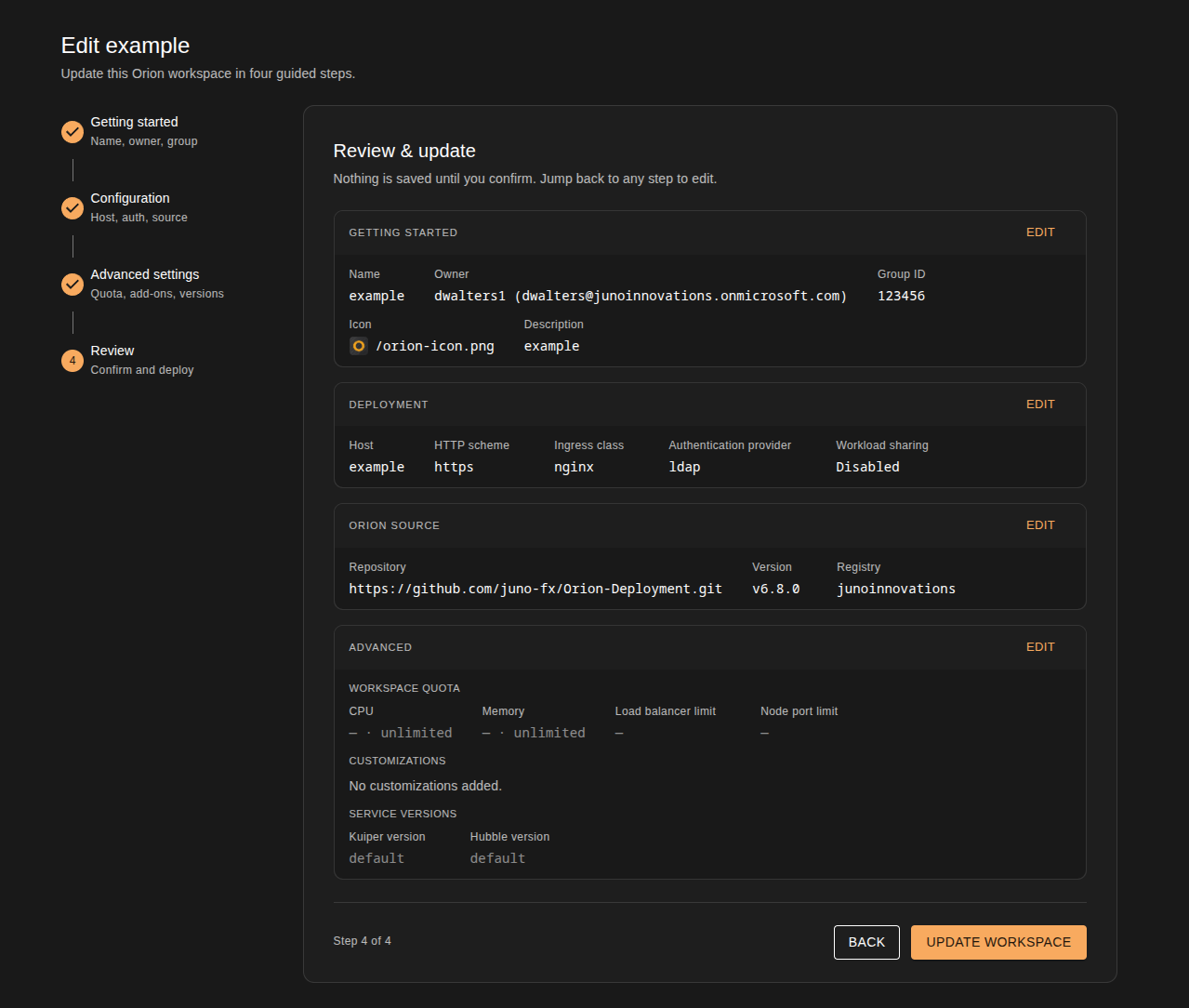
Advanced settings
All advanced settings are optional.
- Resource quotas. Caps how much of the cluster the workspace can consume. See Resource Quotas below.
- Add-ons. Additional Helm charts to install alongside the main Orion deployment charts, for example the NVIDIA GPU Operator.
- Version overrides. Override the version of individual workspace services. This is not recommended, as each Orion deployment pins these versions to ensure compatibility. Clear an override to return the service to the chart default. See our upgrade and rollback guide for details.
Review
Confirm your settings and click deploy to create the workspace.
Resource Quotas
Workspaces can be given a resource quota, capping how much of the cluster a single workspace is allowed to consume.
When a quota is set, Genesis creates a Kubernetes ResourceQuota in that workspace's namespace, so the cap is enforced
by Kubernetes itself against every pod and service in the workspace, including workloads launched by users through
Orion Workspaces.
Setting quotas
Quotas can be added and updated from the workspace creation and configuration forms, or via the Genesis API. See Setting a quota via the API below.
The following can be capped per workspace:
| Quota | What it caps |
|---|---|
| CPU requests | Total CPU requested across all pods in the workspace. This is what the scheduler reserves, so it governs how much of the cluster the workspace can hold. |
| CPU limits | Total CPU all pods in the workspace are allowed to burst to. |
| Memory requests | Total memory requested across all pods in the workspace. |
| Memory limits | Total memory all pods in the workspace are allowed to burst to. |
| NodePorts | Number of NodePort services the workspace can create. |
| LoadBalancers | Number of LoadBalancer services the workspace can create, which is the useful one to cap in cloud deployments where each load balancer is a billable resource. |
CPU and memory values use standard Kubernetes resource units, for example 4 or 4000m for CPU and 16Gi for memory.
NodePort and LoadBalancer values are plain counts.
Quotas apply to the whole workspace
The quota is namespace wide, it is not a per-user or per-workload limit. Once a workspace reaches its quota, further workloads will fail to schedule until something in the workspace is shut down or hibernated. Size the quota with room for the workloads your users actually run, and see the workload template documentation for controlling what an individual workload requests.
Setting a quota via the API
Quota fields are passed on the same payload used to create or edit a workspace, and are returned when getting a workspace, so you can read back what a workspace is currently capped at.
The exact field names and value formats for your installation are documented in the Genesis OpenAPI schema. Open the Development page from the user menu, select Genesis, and look at the workspace create, edit, and get endpoints. See our API Getting Started documentation for generating an API key and making your first call.
Once a quota is set, you can confirm the resulting Kubernetes object with:
kubectl get resourcequota -n <workspace namespace>
kubectl describe resourcequota -n <workspace namespace>
describe also shows current usage against each cap, which is the quickest way to see how close a workspace is to its
limit.
Path Based Routing
Genesis and Hubble both support path based routing. A workspace can be given the same host as Genesis itself, and is then reached on a path under that host rather than on a hostname of its own. This removes the need to create a custom DNS record, and issue a certificate, for every workspace you create.
For example, with Genesis served at orion.example.com, a workspace named vfx is reachable at
orion.example.com/vfx instead of requiring a dedicated vfx.example.com record.
Custom hosts are still supported
Path based routing is an option, not a replacement. You can still give any workspace its own host, and existing workspaces configured with a custom host continue to work exactly as they did before. Set the host to your Genesis host to use path based routing, or to a hostname of its own to keep a dedicated host for the workspace.
When to use each
| Approach | When to use it |
|---|---|
| Shared host (path based) | The default choice for most deployments. No per-workspace DNS record or certificate is needed, so new workspaces can be created without any external setup. |
| Custom host per workspace | Use when a workspace needs to be isolated to its own hostname, for example to satisfy a security or client separation requirement, or to point a workspace at a different ingress or certificate. |
The host is set in the Configuration step of the workspace creation wizard, and can be changed later by reconfiguring the workspace from the Manage action.
Changing the host of an existing workspace
Switching a workspace between a custom host and the shared Genesis host changes the URL users connect to. Any bookmarks or direct workload links pointing at the old host will need to be updated.
Workspace Actions
Non-admin vs admin privileges
Admins are the only users that are able to activate/hibernate, manage and configure the workspaces. Non-admins are only able to connect to their assigned workspace. Learn more about user management here
Activate/Hibernate
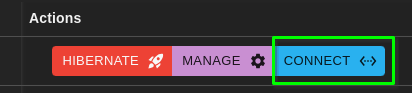
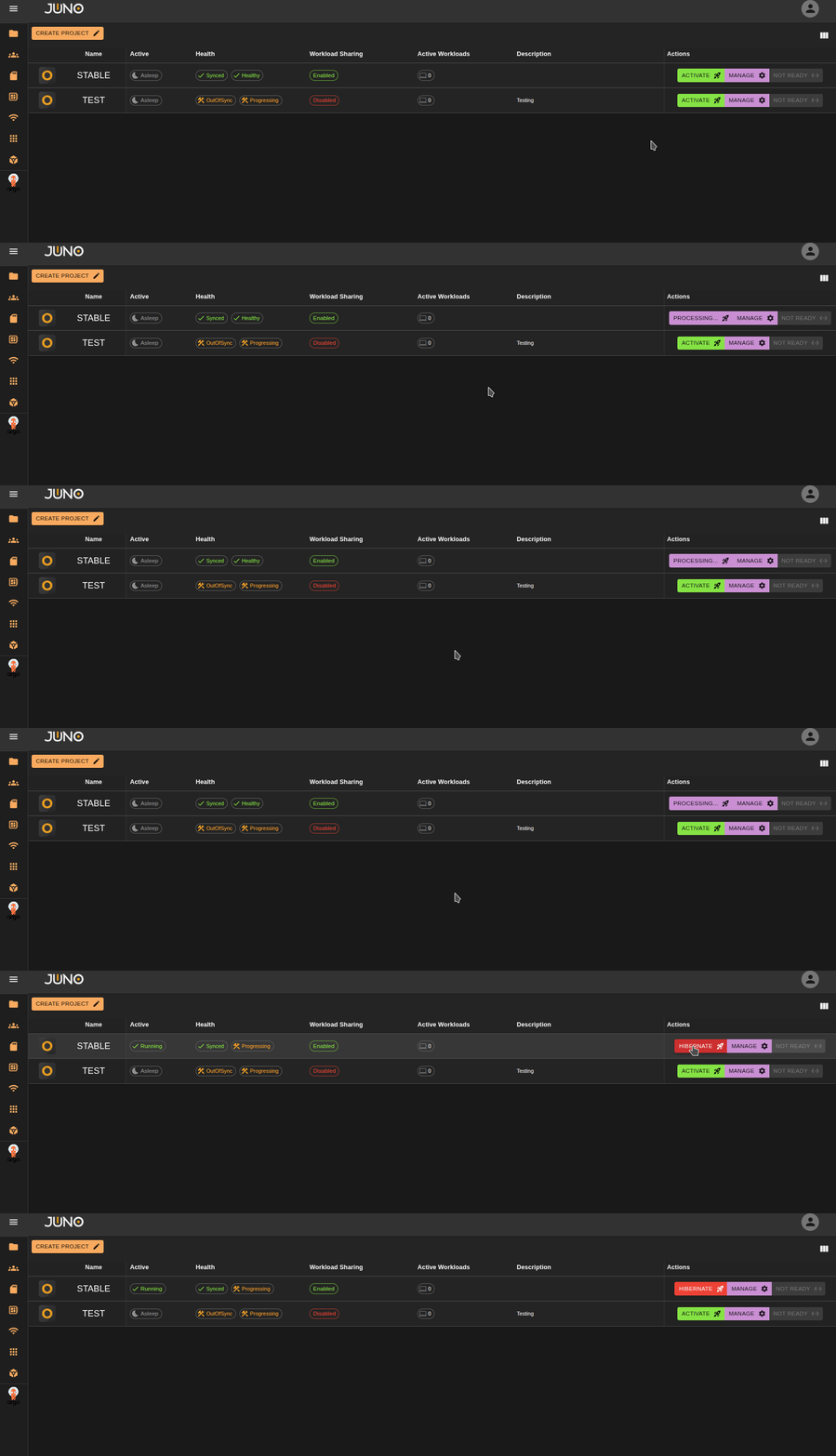
From the main workspace table, you will see your available actions for each workspace. Clicking Activate will begin scaling up the compute resources for the workspace. Once it's ready users can then connect to the workspace via the connect button. To hibernate a workspace and scale the compute resources back down, simply click the hibernate button. You will be prompted with a confirmation pop up before proceeding with the hibernation process. Please note all active workloads on a workspace must be shutdown prior to hibernating.
Manage
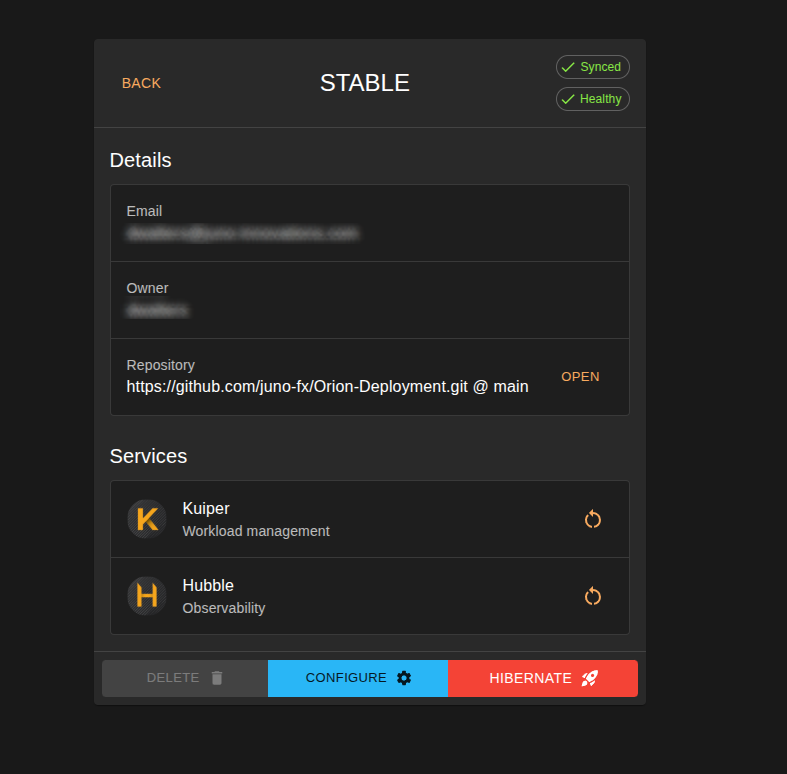
The manage button is only available to admins. Any admin can manage a workspace, not just its owner. The manage page shows the workspace's sync and health status, its details (email, owner, and deployment repository), and its services. From the buttons along the bottom, admins can delete the workspace, open the configuration form to reconfigure the workspace via CONFIGURE, and activate/hibernate.
Restart Workspace Services
The Services section lists the workspace's Kuiper and Hubble services. Click the restart icon on either row to restart
that service. This restarts the service for that workspace only, without touching any other workspace, and saves you
having to restart the deployment by hand with kubectl.
Restarting is per-workspace
These controls act on the Kuiper and Hubble deployments in that workspace's namespace. To restart cluster level services, use the restart controls on the Orion Admin settings page instead.
Connect
Once a workspace is active and ready, users that are assigned that workspace can click the connect button, to connect directly to that workspace deployment. Read more about Orion Workspaces.