Workload Management
Note
Workload management is restricted to members of 'admin' and 'kuiper' user groups
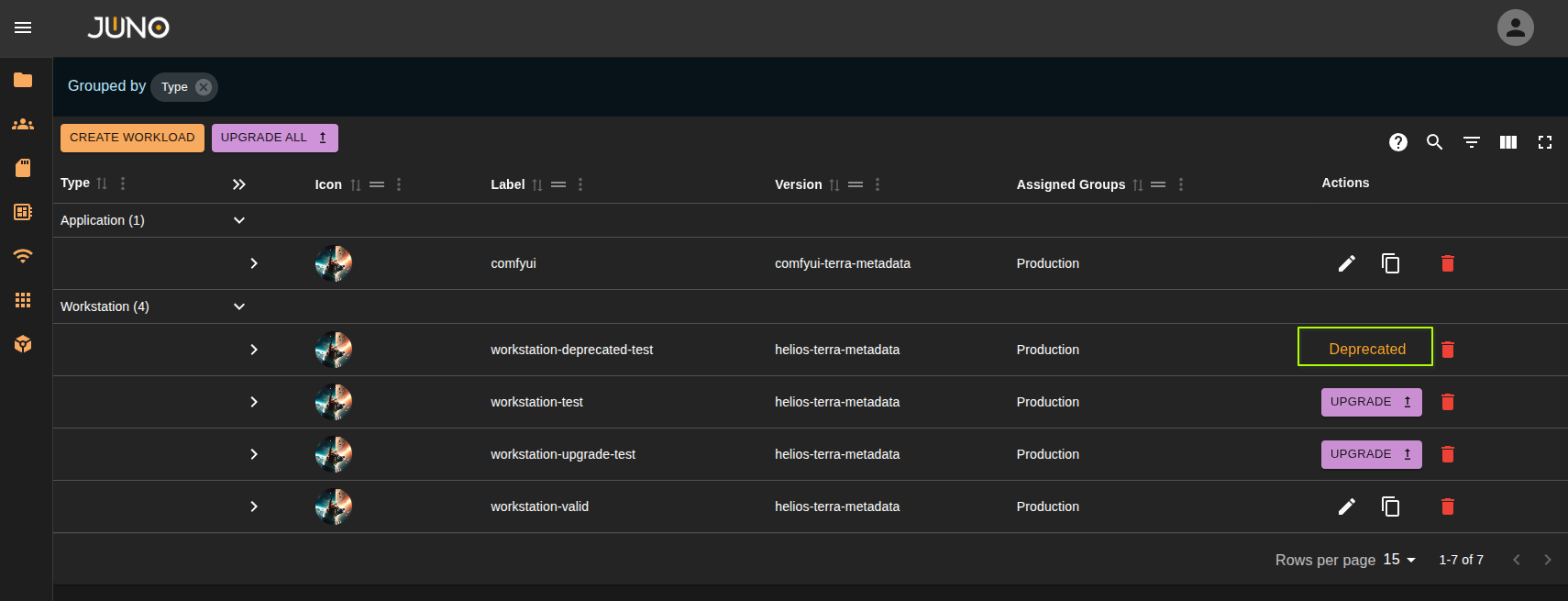
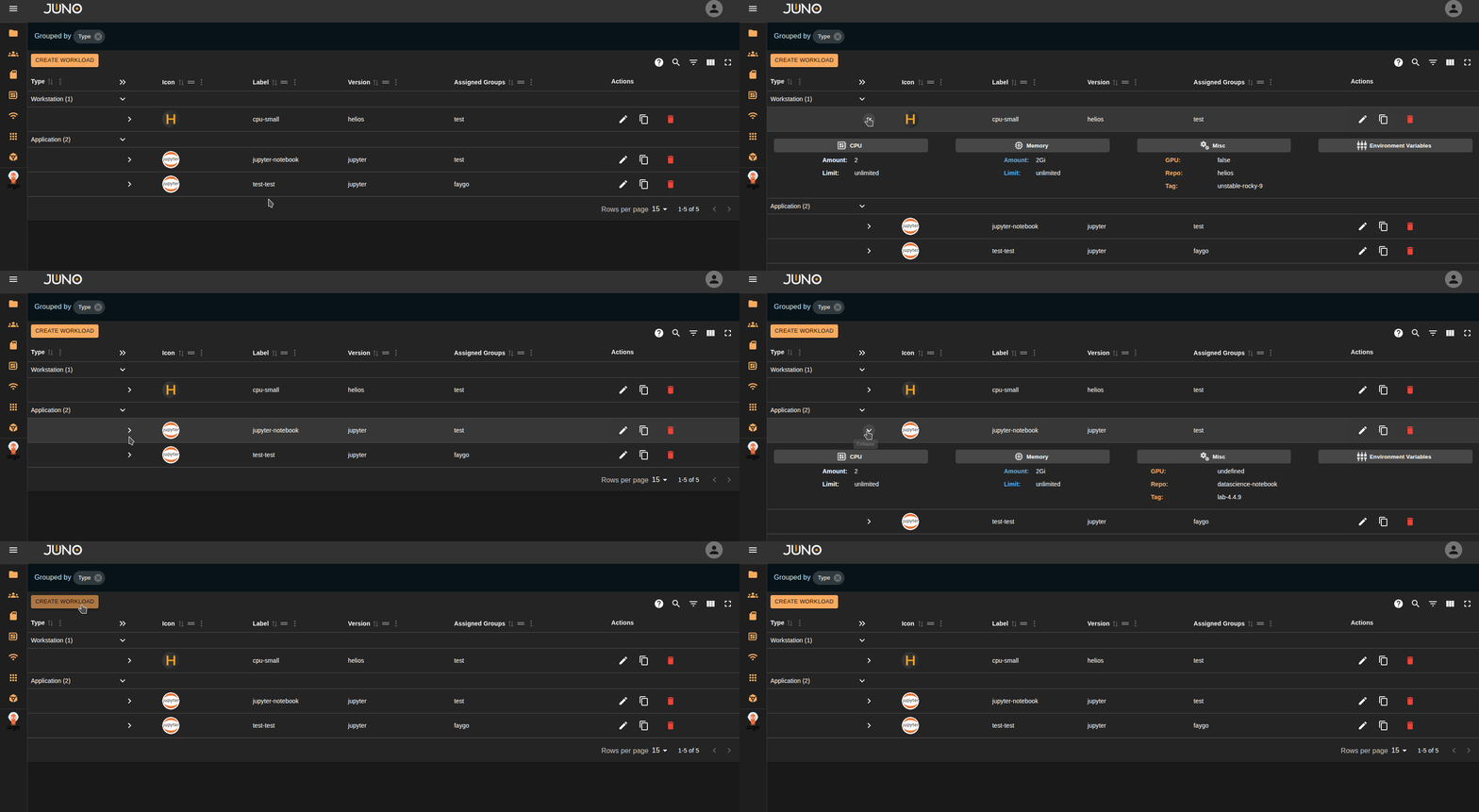
The workload management page allows users to create, edit, and delete workload templates, including assigning templates to specific groups and workspaces. Each template row in the table can be expanded to show additional details for the workload.
Pre-requisites
Before continuing, ensure you have installed a workload template schema from Terra. You can find the instructions for this in the Terra Plugin Installation documentation.
Template Creation
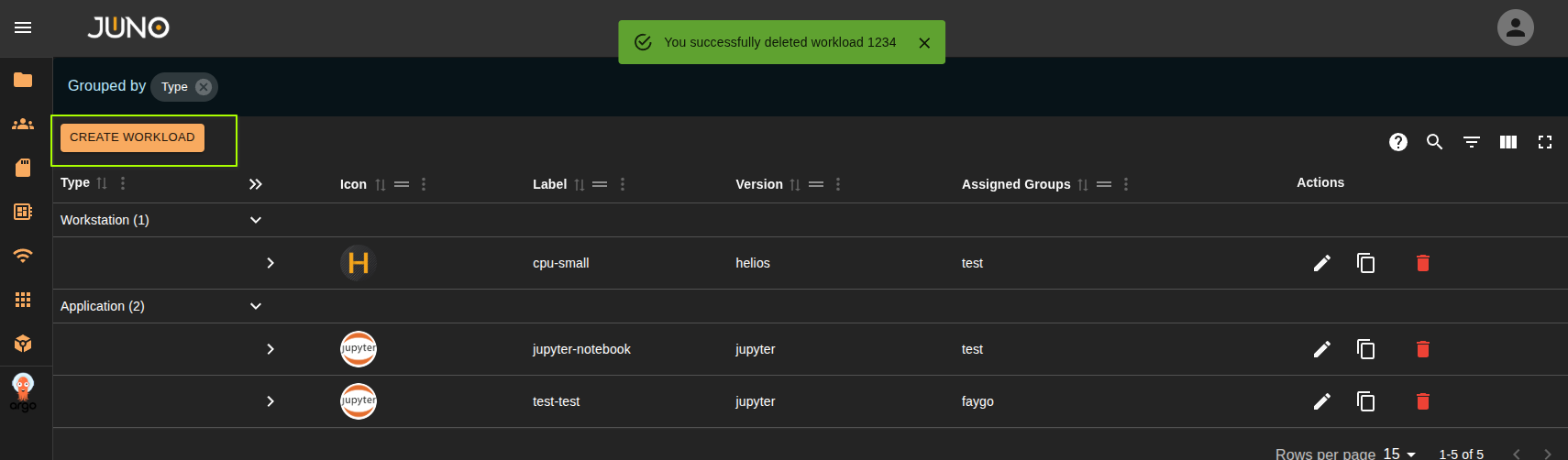
Use the Create button at the top left of the table to open the template creation wizard.
Schema Version
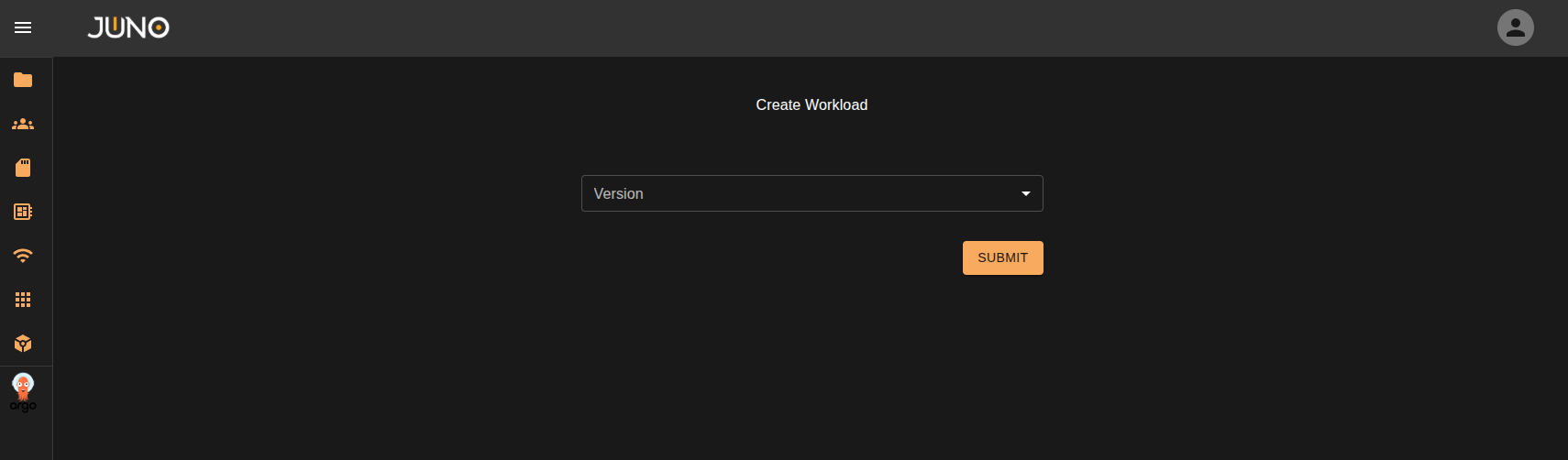
The first drop down will list the available schema template versions. These will be grouped by the workload type you are creating the template for. Once selected, the template schema fields will appear for you to fill out.
Schema Fields
The schema fields available may differ between the schema version selected. The UI will prompt you for all required fields for the schema. Once the fields are filled out simply click submit at the bottom right, and the workload template will now be created.
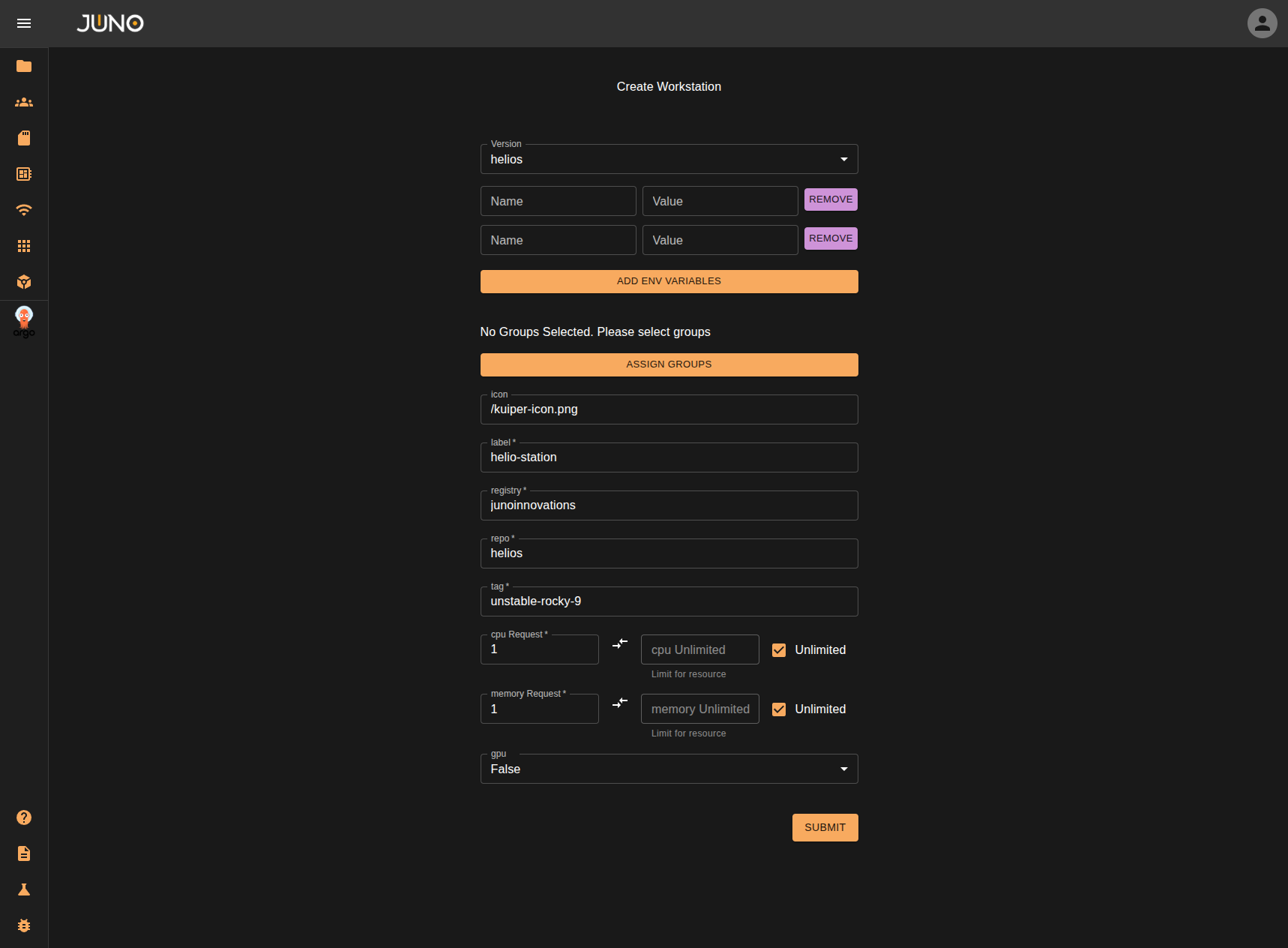
Schema Field Types
When authoring a workload template via Terra the author of the plugin can define additional fields within the configMaps data. These are then populated into the Genesis front end UI.
Please note
Not all Genesis release versions have full field support. Field type and support is continuously added in newer release versions. See Terra's Plugin Fields documentation for the full list of supported field types and properties.
Template Env Variables
Add Environment Variables to a template, which can be used and accessed directly from within a workload.
Environment Variable Hints (env_hints)
If the Terra plugin the template is based on defines an env_hints entry in its metadata.yaml, the template creation form will display a list of that plugin's commonly used environment variables. Click a variable from the list to add it to the template instead of typing it in manually.
Auto Shutdown & Hibernation Fields
Every workload template schema now includes 3 additional fields, letting template authors control if and how an idle Kuiper workload winds itself down.
| Field | Values | Description |
|---|---|---|
autoShutdown |
Enabled / Disabled |
Turns the idle shutdown timer on or off. |
shutdownMethod |
Shutdown / Hibernate |
Whether an idle workload is fully shutdown or hibernated. See below. |
shutdownTimeout |
Integer (minutes) | Idle time allowed before shutdown/hibernation. Defaults to 45. |
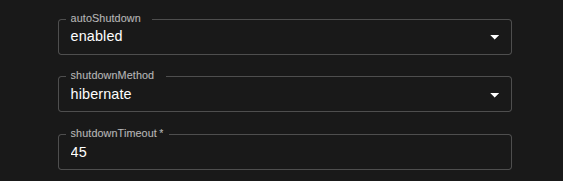
Disabled by default behavior
shutdownMethod and shutdownTimeout are only used when autoShutdown is Enabled. If autoShutdown is set to
Disabled, the workload behaves exactly as it does today, users are responsible for manually shutting the
workload down themselves.
Shutdown vs. Hibernate
- Shutdown - The workload is fully torn down, the same as if a user manually deleted it.
- Hibernate - The workload's StatefulSets and/or Deployments are scaled to 0 replicas, which deletes the running pods and scales the workload's compute usage down without deleting the workload itself. Users can reactivate a hibernated workload from Hubble, which scales the replicas back up.
Hibernation does not save session state
Scaling replicas to 0 deletes the pod, so anything living only in the pod's filesystem or memory is lost. To persist data across a hibernate/activate cycle, the workload must write to a Persistent Volume Claim (PVC). For Helios workloads, admins can additionally configure an XFCE4 session to save a user's desktop session to their home directory, see the Helios session persistence guide for setup steps.
Read more about how the shutdown timer, warning notifications, and manual hibernate/activate controls behave from a user's perspective in the Hubble Workloads documentation.
Template Group/Workspace Assignment
During template creation you must assign the template to at least one group. Assigned templates are available only to the selected group(s); you can scope them to a workspace or to a specific user group. Learn more about user management here
Template Actions
Edit
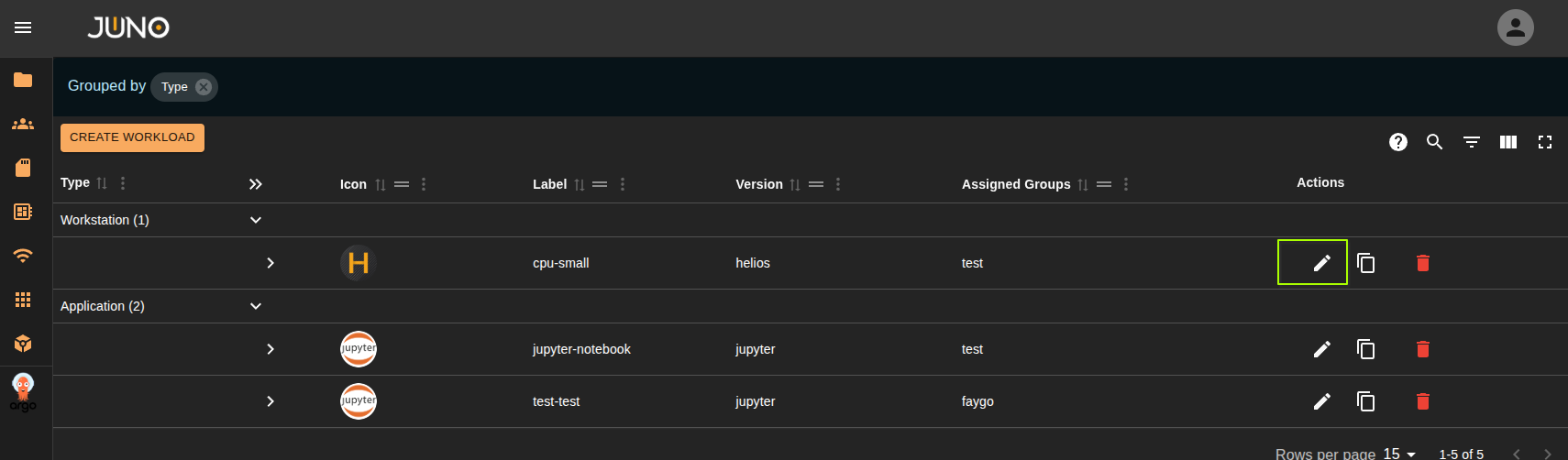
From the main table, users can choose to edit a workload template by clicking the pencil icon on the template's row. Doing so will pull up the same creation form, pre-filled in with the current template values. Users can edit any field as needed. The schema version will default to the current template's version, and is not editable. If a new version is needed, users can create a new workload via the CREATE WORKLOAD button.
Delete
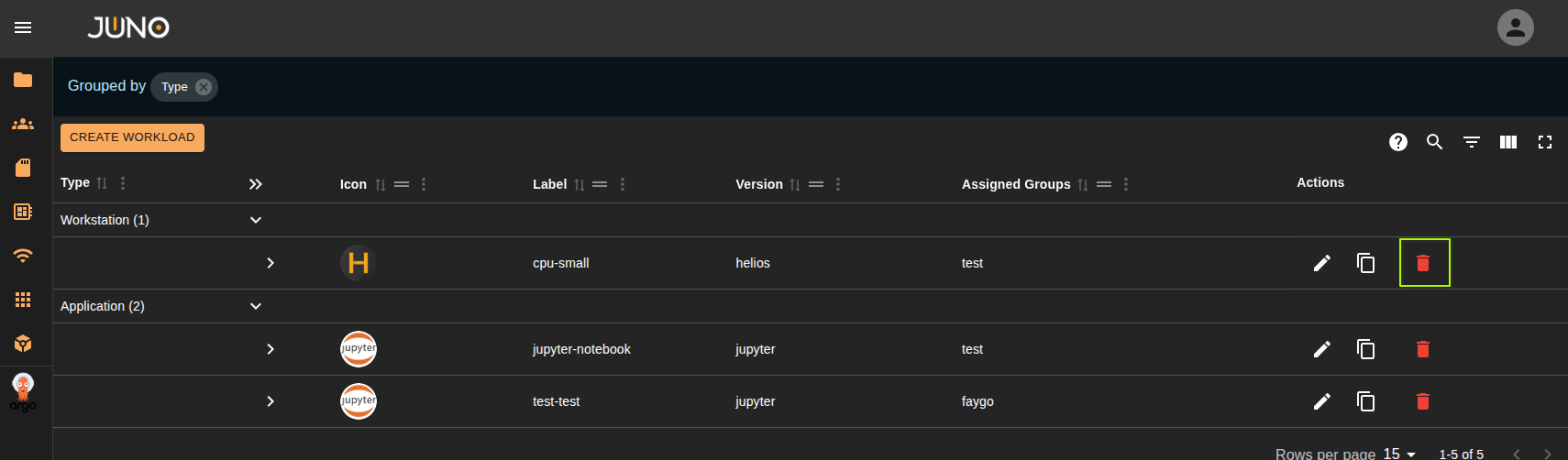
Users can also choose to delete a workload template by clicking the red trash can icon on the template's row. The user will be prompted with a confirmation before proceeding.
Duplicate
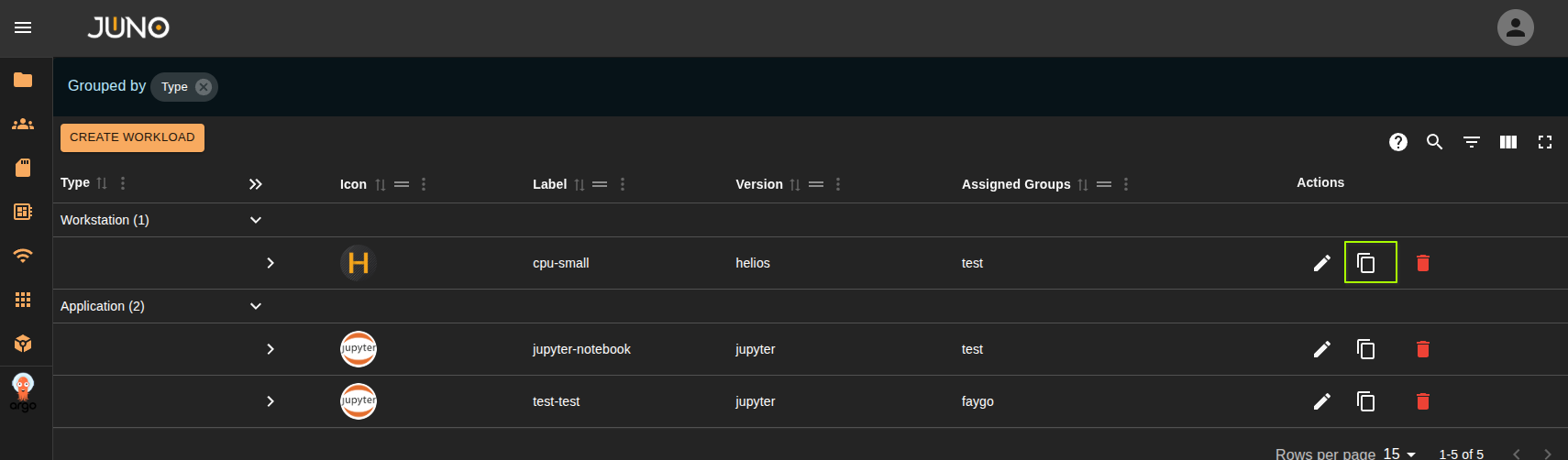
Users can duplicated a template by selecting the duplicate icon on each row.
Note
Deprecated templates cannot be duplicated. See the Deprecated section below.
Upgrade
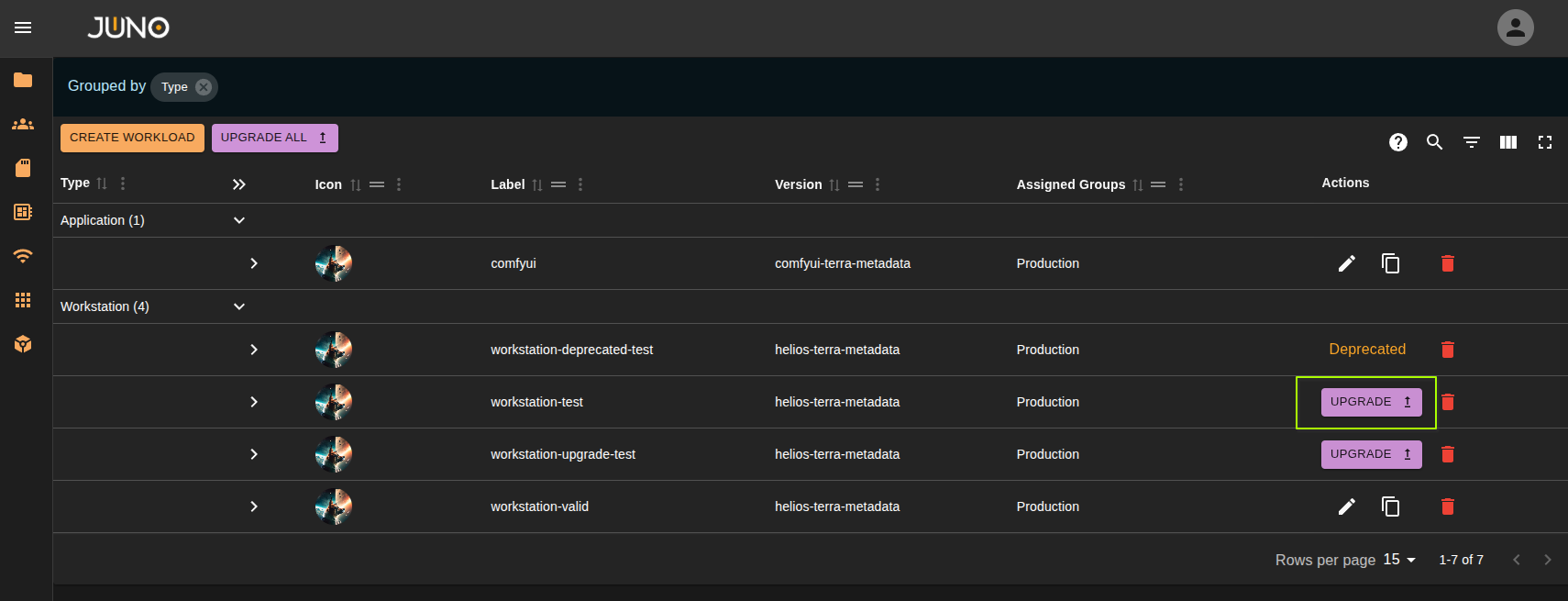
When a chart for a template changes, you will be able to upgrade the template so it matches what changes the chart has. You can upgrade all templates in the table or upgrade a single template by selecting the upgrade button on the row.
Migrate
When a template's parent schema gains new fields, the template no longer matches its chart. Previously this marked the template as deprecated, which blocked editing and duplicating it. Instead, a Migrate button now appears on the template's row.
Clicking Migrate opens the template form with the new fields from the parent schema included, and your existing values pre-filled. Fill out the new fields and submit to migrate the template onto the new chart. The template is then a regular, fully editable template again.
Migration relies on Genesis being able to read the template's parent schema. Templates whose parent schema cannot be verified are still marked as deprecated.
Deprecated
A template becomes deprecated when Genesis cannot verify the template's parent schema, for example when the matching schema is no longer found. You may continue using the template, and workloads can still be launched from it, but you will no longer be able to edit or duplicate the template.
Templates with new schema fields are no longer deprecated
A template whose parent schema simply gained new fields is no longer deprecated. Use the Migrate action on the template's row to configure the new fields and bring the template onto the new chart.
Templates missing the auto shutdown fields
Every workload schema includes the autoShutdown, shutdownMethod, and shutdownTimeout fields described
above. Templates created before those fields were introduced have no values for
them, and workloads launched from those templates will not have the automatic idle shutdown timer. Use the
Migrate action to configure these fields and bring the template onto the new chart. Users can still
manually hibernate these workloads at any time from Hubble, see
Manual Hibernate/Activate.