License Management
Orion licenses are managed from the Licensing page, accessible by admin users on the Genesis sidebar navigation.
| License Type | What Is Counted |
|---|---|
| User | Unique users with running workloads. |
| Workload | Running workloads, regardless of user. |
| Managed Core Hours | CPU core hours used by running workloads, drawn from pre-purchased keys. |
| Community Edition | Up to 2 workloads, free. |
Activating Your License
Direct Purchase
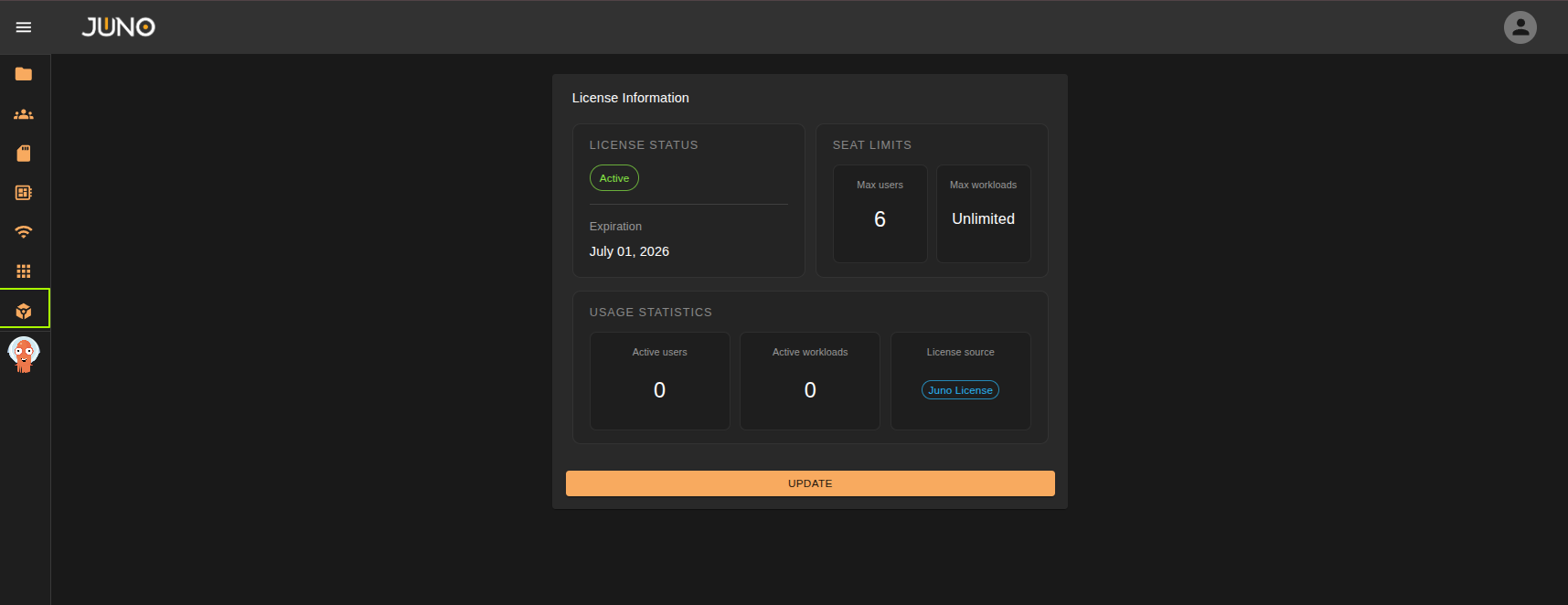
Upon purchasing from Juno, you will receive a license key via email from our team. After the deployment process, add this key to Genesis via the Licensing page to validate your subscription and activate all licensed services. You can update your license at any time from the same page, following the same process as the initial setup.
If you haven't received your license key or need assistance, please contact our sales team at sales@juno-innovations.com. We aim to respond to all inquiries within one business day.
AWS Marketplace
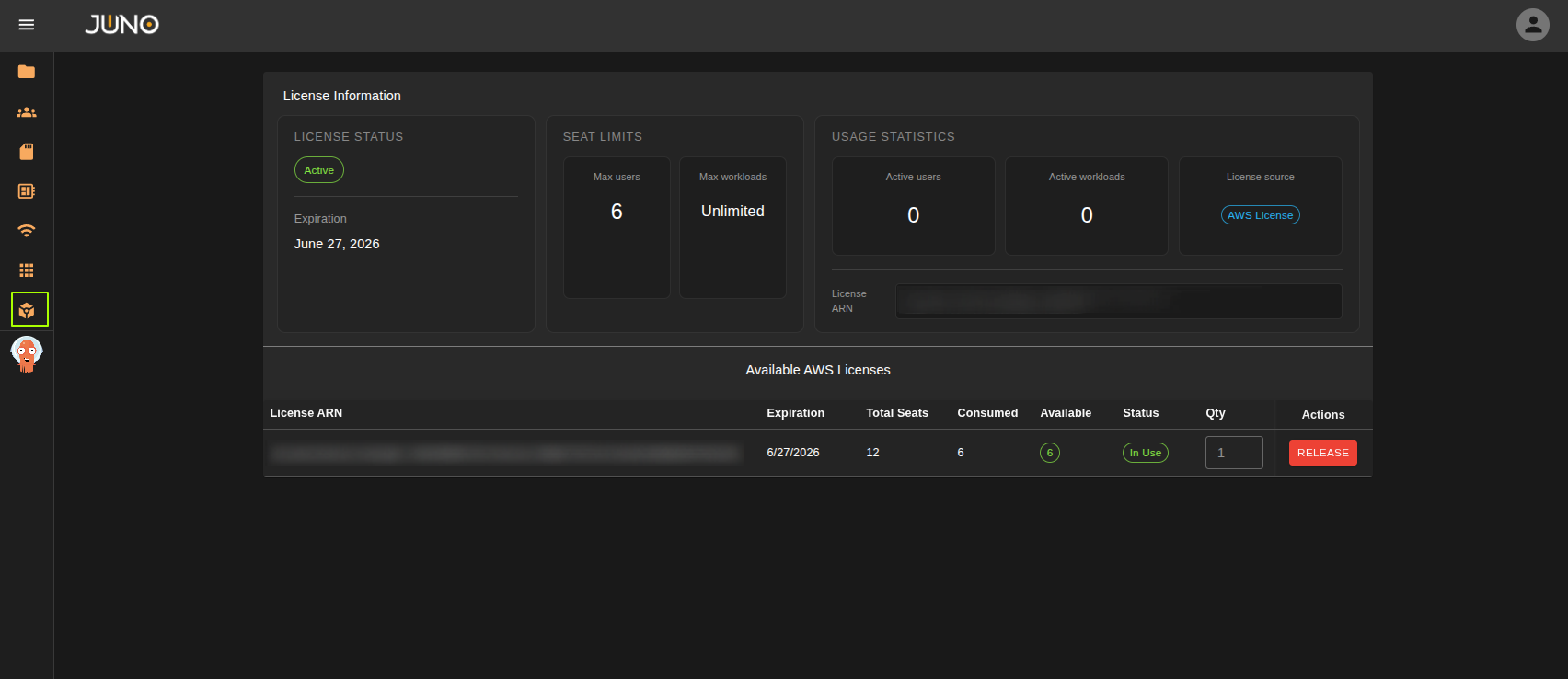
If a license was purchased via the AWS Marketplace, you will be able to check out your license entitlements directly from the Genesis Licensing page.
Simply navigate to the license table, choose how many seats you'd like to checkout for the given license, and click the checkout button. If you wish to release these seats, you can then click the release button.
Pre-reqs for the AWS Marketplace Integration
Tip
Please note all of these pre-reqs will be taken care of automatically via our oneClick installer
- IAM roles and policies created to allow interaction with the AWS license manager.
- AWS_MARKETPLACE environment variable set to "enabled" in the Genesis application
- AWS_REGION environment variable set to the cluster region in the Genesis application
If you need assistance, please contact our support team at sales@juno-innovations.com. We aim to respond to all inquiries within one business day.
Community Edition
We provide a Community Edition to enable you to evaluate, as well to support open-source developers that contribute to Helios, our containerized workload platform.
The Community Edition enables you to run up to 2 workloads for free, indefinitely and without any other restrictions on workload functionality.
User Allowance
If your license is issued for a set amount of users, each user is allowed to spawn as many workloads as they wish. This means you can have up to 20 unique users spawn multiple machines each. The license cap counts unique users across all your workloads.
There is no limit on the amount of users allowed to log into the platform. Only users with active workloads count against the allowance.
Managed Core Hours
Managed Core Hours licenses are not bound to a set amount of users or workloads. Instead, each key is issued with a balance of pre-purchased CPU core hours, and you are only charged for the CPU your running workloads actually use. This means you can run as many users and workloads as you like, for as long as your remaining CPU core hours allow.
Only workloads launched through Juno are counted. Other workloads running in your cluster do not draw down your balance.
How Core Hours Are Measured
The Metrics Gatherer queries each node in your cluster directly for detailed pod metrics, scraping the CPU core usage of every running workload once a minute. At the end of each hour, the average of those scrapes is taken and that value, in CPU core hours, is deducted from the total CPU core hours remaining on your active key.
Because usage is averaged over the hour rather than sampled at a single point in time, short spikes in workload activity have a limited impact on your balance, and workloads that are idle cost very little.
Note
The Metrics Gatherer must be able to communicate with every node in the cluster for core hours to be tracked accurately. If a node cannot be reached for a set period of time, it is flagged as misconfigured on the Genesis Network page and will not have new workloads scheduled onto it until communication is restored. See our Networking documentation for details.
The 2 Free Workloads
The Community Edition allowance of 2 free workloads is preserved under Managed Core Hours licensing. On every scrape, the 2 workloads with the lowest CPU core usage are dropped from the count, so they never count against your remaining CPU core hours.
As an example, if only 2 workloads are running in the cluster, both are dropped and no CPU core hours are deducted from your balance for that period.
Minimum Usage
If the combined CPU core usage of all counted workloads in a scrape falls below 0.25 cores, the value for that scrape is recorded as 0.25 cores. This is a running minimum applied to the cluster total, not an amount added to each workload, and it only takes effect when the total for the whole cluster is under 0.25 cores.
The minimum is applied after the 2 lowest usage workloads have been dropped, so it never applies to your 2 free workloads. If 2 or fewer workloads are running, there is nothing left to charge for and no minimum is recorded.
Reviewing Your Core Hours
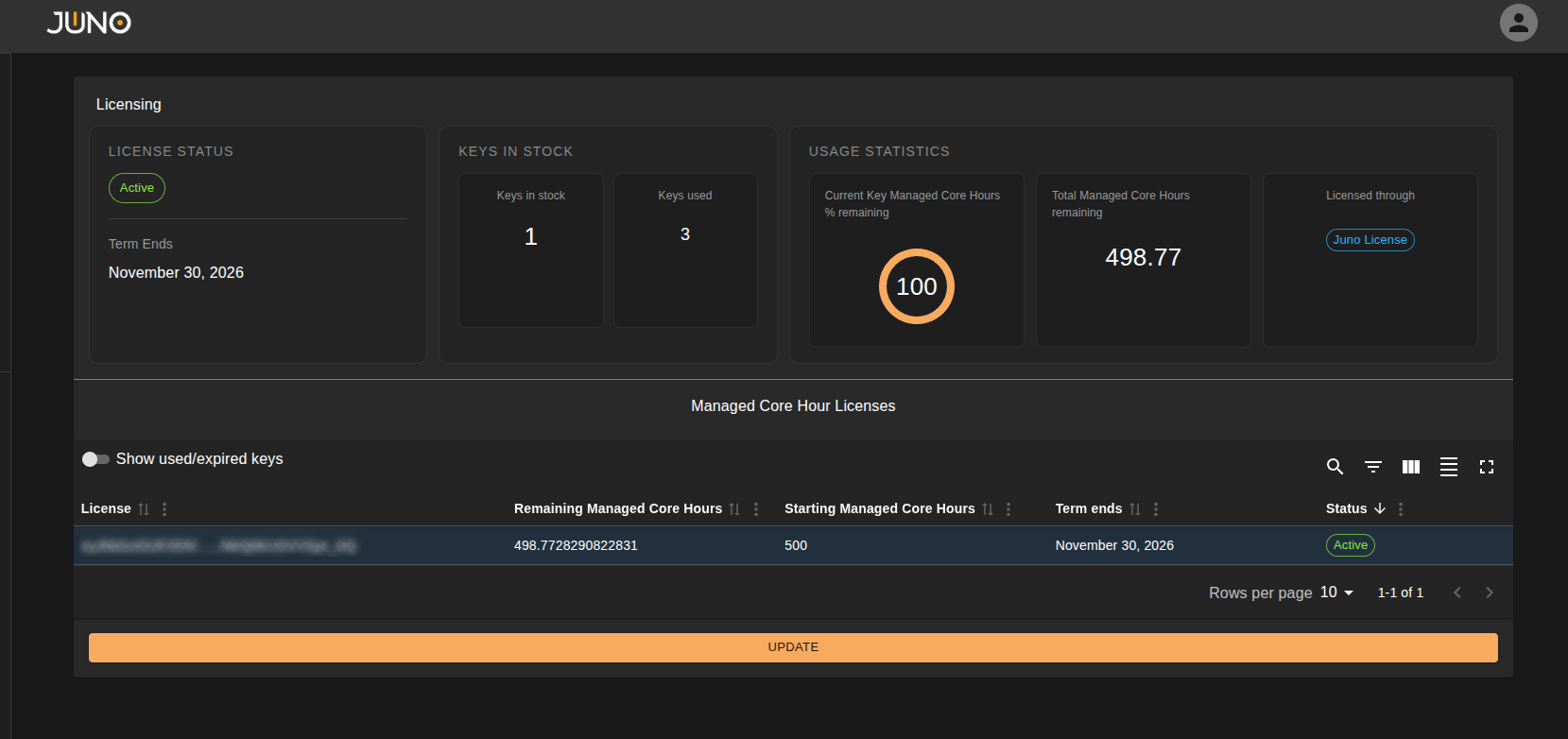
The Licensing page shows the state of your keys:
- License Status - whether your license is active, and the date its term ends.
- Keys in stock - the number of keys available to your cluster, and how many keys have been used.
- Current Key Managed Core Hours % remaining - the percentage of core hours left on the key that is currently active.
- Total Managed Core Hours remaining - the total core hours left across all of your keys.
- Licensed through - where your license was issued from.
- Managed Core Hour Licenses - a table of your keys, with each key's remaining and starting Managed Core Hours, its term end date, and its status. Used and expired keys are hidden by default. Turn on the Show used/expired keys toggle to include them.
Keys are used one at a time. When the active key is exhausted, the next key in your stock becomes active. A banner is displayed at the top of the page when your keys are approaching their expiration date.
For a view of your core hour usage over time, including an estimate of how long your active key will last at your
current rate of usage, install the Kubernetes Prometheus Stack Terra plugin and see the Managed Core Hours usage
dashboard in our Metrics Gatherer documentation.
If you would like to add more keys to your cluster, please contact our sales team at sales@juno-innovations.com.
When Your Core Hours Run Out
If all of your keys are exhausted and no other licenses are available to make active, your cluster reverts to Community Edition.
AWS Marketplace
If your Managed Core Hours license was purchased via the AWS Marketplace, your cluster still reverts to Community Edition when your core hours are exhausted. However, AWS is not aware of this, and will continue to show your Juno subscription as active. Please contact our team at sales@juno-innovations.com for further information and next steps.